Showing posts with label EPM Cloud. Show all posts

Monday, September 16, 2024

Complex PBCS ASO Procedural Calcs

The notion that one cannot write complex procedural calculations in ASO was disproved about 10 years ago. I spoke on the topic for the first time at Kscope15. Now that I'm getting more involved in PBCS, I wanted to see if my old tricks worked.

I'm going to attempt to use an MDX function in an ASO Custom Calc script. According to the documentation, this shouldn't work. Probably some of you have resorted to creating formula members that handle these functions and then call those members in your calculations. Let's see if we can get around that because, frankly, it's a pain. The less outline maintenance, the better.

My test case will be very simple. I'm going to copy data from account 4120 to 4130 but the twist here is that I'll bring in the prior month of data.


This task would be trivial in a BSO Calc.

First let's start off in Calc Manager with a calculation that copies the data for the current month.

1:  CustomCalcParameters parameters0 = new CustomCalcParameters()  
2:  parameters0.Pov = "Crossjoin(Crossjoin(Crossjoin(Crossjoin(Crossjoin(Crossjoin({[FY24]},{Descendants([Channel], [Channel].dimension.Levels(0))}),{Descendants([Entity], [Entity].dimension.Levels(0))}),{[Dec]}),{Descendants([Product], [Product].dimension.Levels(0))}),{Descendants([Scenario], [Scenario].dimension.Levels(0))}),{Descendants([Version], [Version].dimension.Levels(0))})"  
3:  parameters0.target = ""  
4:  parameters0.creditMember = ""  
5:  parameters0.debitMember = ""  
6:  parameters0.script = "([4130]) := ([4120]);"  
7:  parameters0.offset = ""  
8:  parameters0.sourceRegion = "{([4120])}"  
9:  operation.getApplication().getCube('Vis1ASO').executeAsoCustomCalculation(parameters0)  

For those creating one of these scripts the first time I'll give an overview of what the lines are doing. I'm going to leave out the lines with blank arguments.

Line 2 is the POV. Think of this like your BSO fix statement.

Line 6 is the script or the formula that you want to execute. In this case we're setting Account 4130 equal to 4120.

Line 8 is the source region. If it's not in the fix statement and we need to reference the data, we need to add it in here.

Lines 1 and 9 are groovy specific for executing the calc.

This particular calculation will result in the following:

But we need to get last month's data. Let's try putting an MDX function in Line 6.

 parameters0.script = "([4130]) := ([Period].CurrentMember.PrevMember,[4120]);"  

This change passes validation but when I execute it, I get an error. This tells me that the validation (probably) only cares about the groovy syntax here.
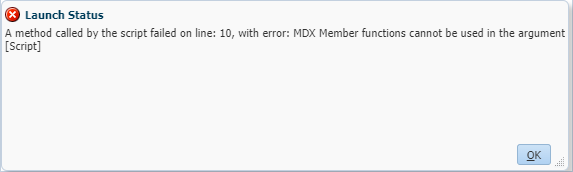

Is there any way around this? I'm going to dig into my bag of tricks and pull out one I've been using for many years with Essbase ASO cubes. Celvin Kattookaran taught me this, I don't know how he found out that it works, I don't even want to know. Anyway, if I put an IIF function on the right side of the formula, somehow it opens up the capability to use any and all MDX functions. Let's see if we can get that to work here.

 parameters0.script = "([4130]) := IIF(1=1,([Period].CurrentMember.PrevMember,[4120]),Missing);"  

My new line includes an IIF function that is set to 1=1 which will always be true. I'm including the Period in my tuple and using the Previous Member function on it.

When I execute the calculation, I get a different error.


This error indicates that our source region doesn't have that previous month in it. This tells me that I'm on the right track and the Essbase engine has begun using the MDX function. The fix for this is relatively simple. I need to add that period into my SourceRegion on line 8. I can either add November into the SourceRegion tuple or add all the months, assuming I'm going to run this for more than just December at some point.

 parameters0.sourceRegion = "Crossjoin({[4120]},{Descendants([Period], [Period].dimension.Levels(0))})"  

Once I changed that, the script ran perfectly.


I suppose a word of caution is in order here. While I've been using this method reliably for the better part of a decade, I'm not sure it's supported. I'm nearly certain it's not officially documented anywhere. But this might just get you out of a jam and maybe you can ditch BSO/Hybrid for good. 😀


Monday, June 24, 2024

EPM Cloud Planning Smart Lists

The Backstory:

I never had much use for Smart Lists in Essbase. I remember people asking for the functionality since I started working with Essbase in 1998. Here's a post from the Essbase Network 54 Board in 2000 essentially asking for this capability.


They finally got around to adding "Typed Measures" to Essbase somewhere around 2007. Here's a link to Tim Tow blogging about them in 2008.


A Basic Primer on Smart Lists:

Essbase stores numerical data, specifically 8-byte floating point numbers. Essbase is what Planning/PBCS/EPM Cloud Cubes use to store data. As a work-around to store some text, you can create a list of text values, assign them some numerical value and store that in the database. The application layer then interprets those values as text using the Smart List.


Some Use Cases:

Displaying some status for an Account/Entity/Product/etc.

Displaying the hire month for an employee.

You want an indicator for a member but don't want to create an Attribute dimension.

You want to show text in the numeric area of a report.


How to Create a Smart List in EPM Cloud Planning:

Step 1: Create a Smart List

Find the Create and Manage menu and select Smart Lists.


Press the + sign to add a new Smart List.

Now name your Smart List and decide on options. In this case the Label will be Status. Any missing values will show as Active by default.

Click on the Entries tab and edit your list of values. The Name needs to be alphanumeric and contain no spaces but the Label can contain spaces. Once this is complete, save the Smart List.


Step 2: Update The Outline

Navigate to the Create and Manage menu and select Dimensions.
Add a new member in a dimension and change its Data Type to SmartList. Then set the Smart List value. In this case I added a member in the Account dimension called Entity Status and assigned it the Status Smart List.


Before leaving the Dimensions editor, click on the Evaluation Order tab. This setting tells the application how to resolve conflicts if you have Smart Lists in multiple dimensions. You will need to select the dimension in which your Smart List resides and Save this setting. 

Once the dimension change is saved, be sure to refresh your database.

Step 3: Test Your Change in Smart View

Now you can go into Smart View and retrieve some data to see the Smart List working.

When you click on a cell, you'll get a drop-down box allowing you to change the cell's value. You can write this back to the database.

Good luck using Smart Lists! Let me know the creative ways you're using this feature.

Thursday, June 13, 2024

EPM Cloud ASO Plan Type Procedural Calcs

When learning EPM Cloud Planning, I went through a class that taught me you cannot perform ASO procedural calculations. I didn't like to hear I had to give up something so vital to Essbase ASO. While it's kind of true, I'll show you a work-around.

For an in-depth explanation of the problem, see this really old blog post HERE. In short, summing formula members across other dimensions is really, really difficult. The work-around is to run a procedural calc at level-0 thus storing the data. Then you let ASO do it's aggregation magic.

It's surprisingly easy in EPM Cloud Planning ASO Plan Types.

Step 1: Put the formula into a member.

If you're creating a bunch of calcs, I'd recommend putting these members in a hidden section of the hierarchy. For this example, I created a member in my Account dimension with two members under it.


On the ProcTestSource I put a very simple member formula of the number 9999. I'll get into more complex formulas in future posts.


Step 2: Create a business rule to run an allocation on the ASO cube.


For the formula, I put the Target on the left side and the Source on the right.


Now I run the business rule and retrieve my data in Smart View (or Dodeca). The column on the left is a formula that will evaluate to 9999 at every intersection. The column on the right has the stored value at level 0 and lets ASO handle the aggregations.


If you've got a better way of doing this, please reach out to me. I'm curious to see if there are other ways to accomplish this (other than doing the calculation in a BSO cube and moving the data over).